 YCC365 Plus Docs
Function Introduction
Real-time preview interface, video playback and preferences
Real-time preview interface
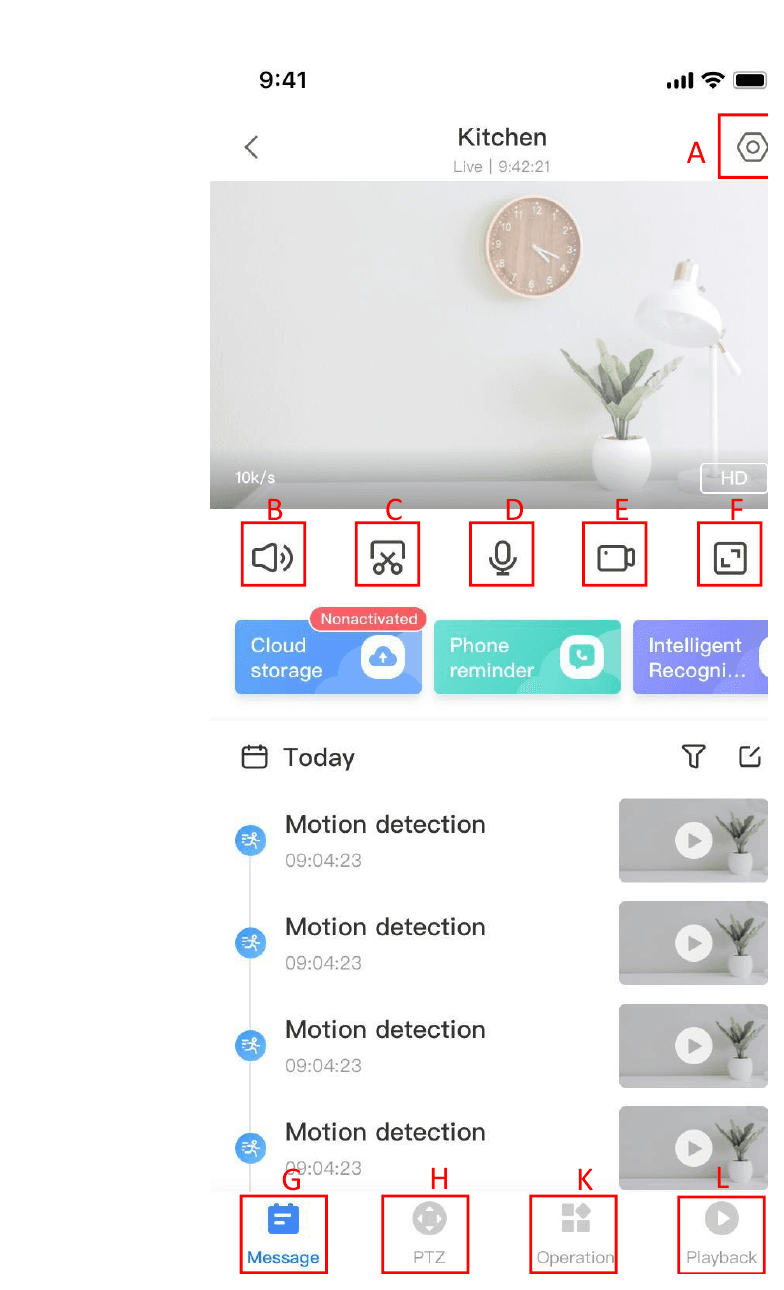
| Label | Function |
|---|---|
| A | Parameter Menu & Settings |
| B | Sound |
| C | Screenshot |
| D | Hold to talk |
| E | Recorded video |
| F | Full Screen |
| G | Message |
| H | PTZ |
| K | Operate |
| L | Playback |
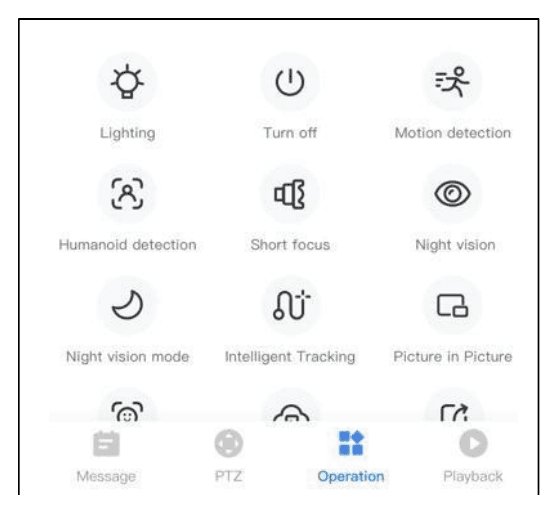
The Operate menu (K) provides quick access to functions such as Lighting, Turn off, Motion detection, Humanoid detection, Short focus, Night vision, Night vision mode, Intelligent Tracking and Picture in Picture.
Video playback
Cloud video playback needs to be purchased and paid for before it can be used.
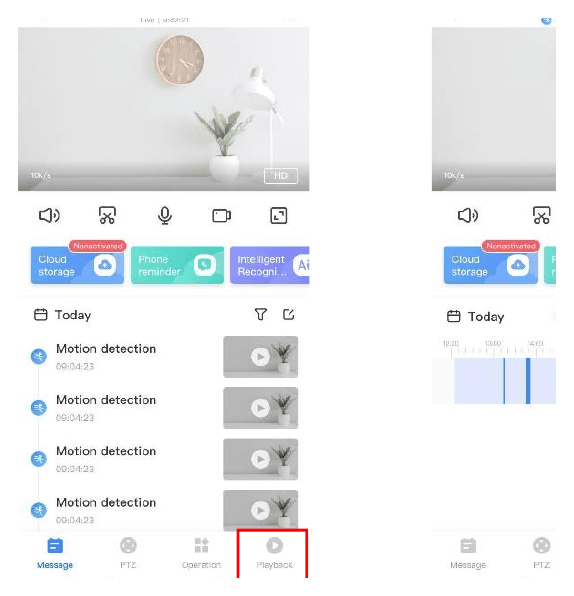
- A: Select "Replay" at the bottom right corner of the live interface to view the playback video of the camera.
- B: Switch the playback path — you can choose to watch cloud playback or memory card playback.
Preferences
Click the Parameter Menu & Settings icon (A) in the preview screen to open the parameter menu. The settings are organized as follows:
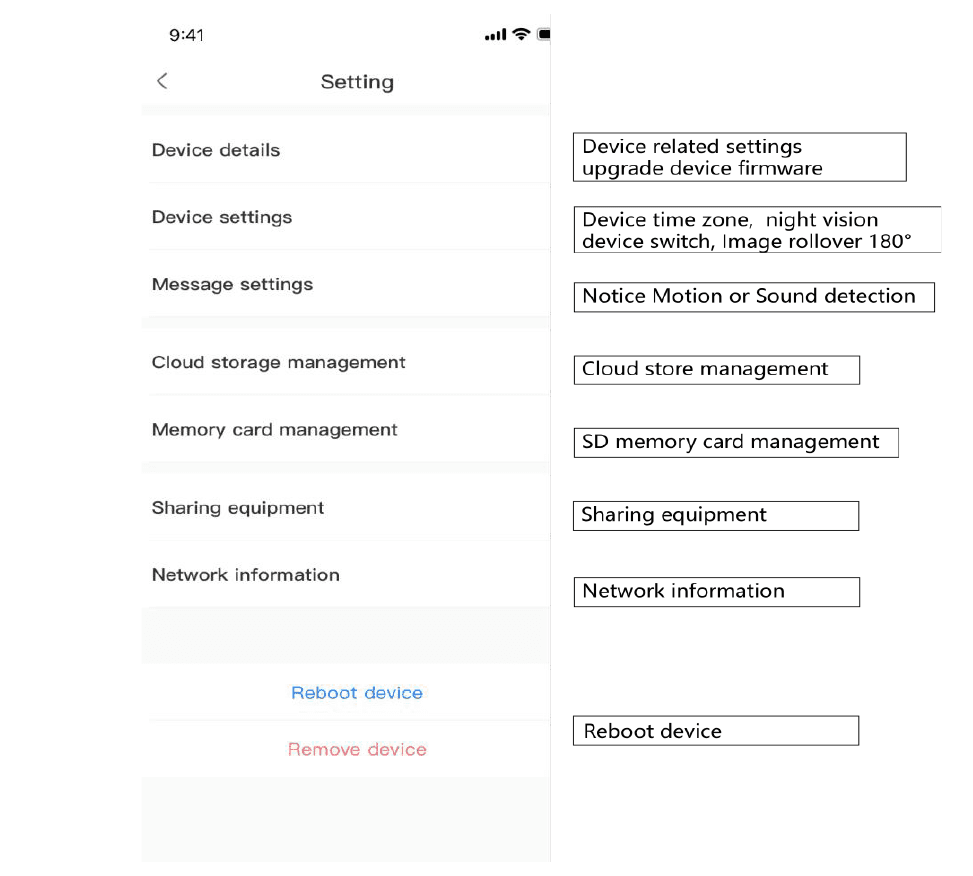
| Setting | Description |
|---|---|
| Device details | Device related settings, upgrade device firmware |
| Device settings | Device time zone, night vision device switch, image rollover 180° |
| Message settings | Notice of Motion or Sound detection |
| Cloud storage management | Cloud store management |
| Memory card management | SD memory card management |
| Sharing equipment | Sharing equipment |
| Network information | Network information |
| Reboot device | Reboot device |